How to Track QR Code Scans in GA4 (and Scan Analytics)
2026-10-25
Short answer: QR code tracking works by pointing the code at a short redirect link that records each scan (time, device, country and city) and then forwards the visitor. To see QR traffic in Google Analytics 4, add UTM parameters - utm_source, utm_medium and utm_campaign - to the destination URL. GA4 then shows it in Reports > Acquisition > Traffic acquisition.
Last updated: 14 November 2026
A printed QR code tells you nothing on its own. Your printer doesn't know who scanned it, and neither does your website unless you set it up. This guide covers both ways to measure QR codes - scan analytics from a dynamic QR code and campaign tracking in Google Analytics 4 (GA4) - how to set each one up, and why the two sets of numbers almost never match.
How does QR code tracking work?
A QR code is just a pattern that holds data, usually a URL. Tracking happens at the link, not in the pattern itself. There are two ways to do it:
- Redirect tracking (dynamic QR codes). The code holds a short link such as qrcodable.com/r/spring-menu. When someone scans, the short-link server logs the scan and immediately sends the visitor on to the real destination. You get a scan count even if the destination is a PDF, an app store page or someone else's website.
- Destination tracking (UTM parameters + GA4). The destination URL carries campaign tags, for example ?utm_source=flyer&utm_medium=print&utm_campaign=spring_sale. When the page loads, your analytics tool (GA4 here) reads the tags and puts the visit under that campaign.
The two work best together. Redirect tracking counts every scan. GA4 shows what people did after they arrived: pages viewed, sign-ups, purchases.
What can QR code analytics tell you?
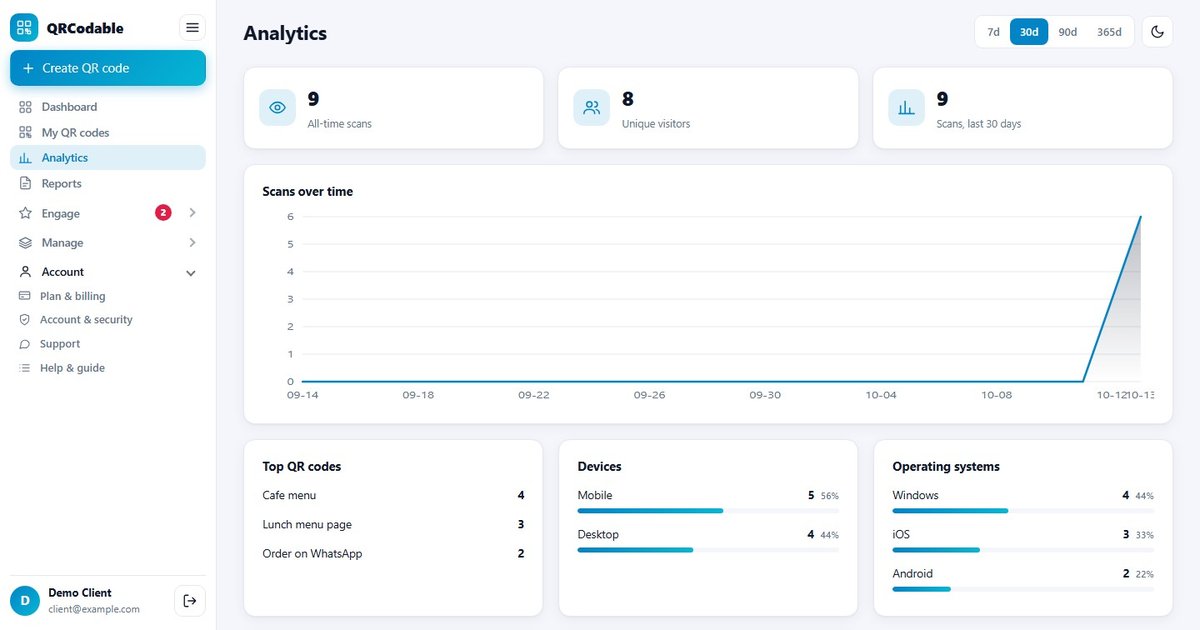
A dynamic QR code platform logs each scan as it happens. In QRCodable, each scan record includes:
- Date and time - spot peak hours, weekdays and the effect of a mailing or event.
- Device and operating system - iPhone versus Android, phone versus tablet.
- Country and city - an approximate location based on the network the phone used, not GPS.
- Which code was scanned - so you can compare flyers, tables, stores or product lines.
What scan analytics cannot tell you: who the person is, their email address, or exactly where they were standing. A scan is an anonymous event. If you need contact details, ask for them with consent, for example with a lead form on the landing page.
Can you track a static QR code?
Only partly. A static QR code stores the final URL directly in the pattern, so no server sits in the middle to count scans. If the URL points to your own website and includes UTM parameters, GA4 can still report visits from it. But you won't see scans where the page didn't finish loading, you can't fix a mistake after printing, and you can't track a destination you don't own (a Google Maps listing, for example). For anything you plan to measure, use a dynamic code. Our guide on static vs dynamic QR codes covers the trade-offs.
How do you track QR codes in Google Analytics 4?
Google's documentation says that when you tag URLs, you should always use utm_source, utm_medium and utm_campaign, and that the values show up in the Traffic acquisition report. Here is the full process for a printed QR code.
- Pick a naming convention and write it down. Use lowercase and one value per channel. Google points out that parameter values are case sensitive, so utm_source=Flyer and utm_source=flyer show up as two different rows.
- Build the tagged URL. Use Google's free Campaign URL Builder (ga-dev-tools.google/ga4/campaign-url-builder) or add the parameters yourself: a question mark after the URL, then name=value pairs joined with an ampersand.
- Use the tagged URL as the QR code's destination. In QRCodable, create a dynamic URL code and fill in the UTM source, medium and campaign fields. They are added to the destination when someone scans, so the printed code stays short and easy to scan.
- Test before you print. Scan the code with an iPhone and an Android phone. In GA4, open the Realtime report and check that your visit appears with the right source and campaign.
- Print and distribute. Give each placement its own code or its own utm_content value if you want to compare placements.
- Read the results. In GA4 go to Reports > Acquisition > Traffic acquisition. Change the primary dimension to Session campaign or Session source / medium to see your QR traffic, then add your key events (sign-ups, purchases) to measure outcomes.
Which UTM parameters should you use for QR codes?
- utm_source (required) - where the code physically appears. Examples: flyer, poster, packaging, table_tent.
- utm_medium (required) - the channel type. Use one value for all printed QR codes, for example qr or print, so they group together.
- utm_campaign (required) - the promotion or initiative. Example: spring_sale_2026.
- utm_content (optional) - tells creatives or placements apart. Example: front_page vs back_page, or store_12.
- utm_id (optional) - a campaign ID, useful if you import campaign cost data into GA4.
- utm_term - meant for paid search keywords. Usually not needed for QR codes.
Google also lists utm_source_platform, utm_creative_format and utm_marketing_tactic. Its documentation notes that the last two aren't currently reported in GA4 properties, so most QR campaigns can skip them.
Example: tagging a flyer campaign
Say a gym hands out flyers at two locations and puts up one poster. A clean setup looks like this:
- Flyer, downtown: ?utm_source=flyer&utm_medium=qr&utm_campaign=jan_membership&utm_content=downtown
- Flyer, riverside: ?utm_source=flyer&utm_medium=qr&utm_campaign=jan_membership&utm_content=riverside
- Poster, lobby: ?utm_source=poster&utm_medium=qr&utm_campaign=jan_membership&utm_content=lobby
In GA4, Session campaign = jan_membership shows the whole campaign. Adding Session manual ad content as a secondary dimension splits it by location. With dynamic codes, each of the three also gets its own scan count in the QR dashboard.
UTM naming rules that keep reports clean
These follow Google's own UTM best-practice guidance:
- Lowercase everything and stick with it.
- One source value per placement type and one medium value per channel. Never mix "qr", "QR" and "qr-code".
- Use the exact campaign name everywhere so one campaign doesn't split across several rows.
- Fill in all the required parameters. Google warns that missing UTM parameters show up as "(not set)" in reports.
- Keep a shared spreadsheet of every tagged URL you have printed.
Why don't QR scans and GA4 visits match?
Expect your QR dashboard to show more scans than GA4 shows sessions. That's normal, and it doesn't mean either tool is broken. Here is what each one counts:
- What it counts: the QR platform counts scans that reached the redirect. GA4 counts sessions where its tag loaded.
- Consent banners and blockers: these don't affect redirect counts. GA4 may not record a visit if the visitor declines cookies or blocks scripts.
- Slow or abandoned loads: the scan is still counted, but the GA4 session may never start.
- Destinations you don't own (PDFs, app stores, maps): you still get scans, but GA4 sees nothing.
- Repeat scans: both tools record each one, but GA4 may group them into a single session.
Use the scan count to measure reach (did people scan?) and GA4 to measure outcomes (did they do what you wanted?).
How do you send QR scans to GA4 as events?
UTM tags only reach GA4 if the destination page runs GA4. To get every scan into GA4, even scans that land on a PDF or a third-party page, QRCodable has a Google Analytics 4 integration. It sends each scan as a qr_scan event through Google's Measurement Protocol, with the code name, short-link slug, device, operating system and country as event parameters.
To connect it:
- In GA4, open Admin > Data streams and choose your web stream.
- Copy the Measurement ID (it looks like G-XXXXXXXXXX).
- On the same page, open Measurement Protocol API secrets and create a secret.
- In QRCodable, open Integrations, choose Google Analytics 4, paste in both values and send a test event.
- In GA4, register qr_name and qr_slug as event-scoped custom dimensions (Admin > Custom definitions), so you can use them in reports and explorations.
Google's documentation explains that event parameters only appear as reportable dimensions after you create a custom dimension for them. Data is not filled in for dates before you create it, so set this up before the campaign starts.
How to set up QR code tracking in QRCodable
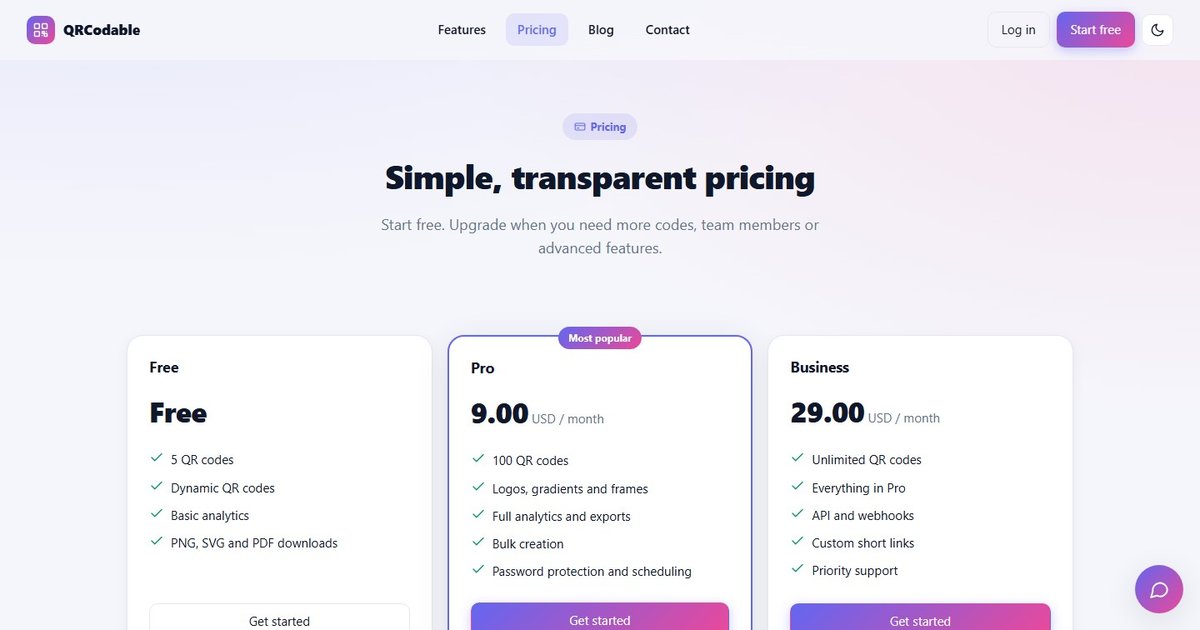
- Create a free account. The Free plan includes 5 dynamic QR codes with basic analytics.
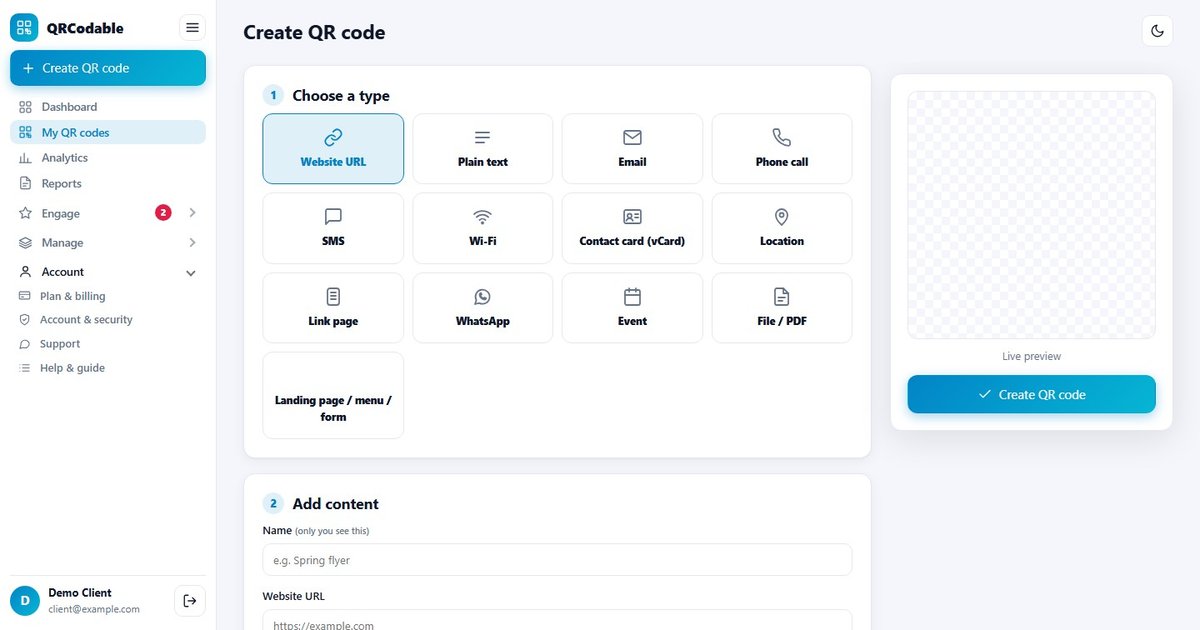
- Create a dynamic URL QR code and add your destination.
- Fill in the UTM fields (source, medium, campaign) to tag GA4 traffic automatically.
- Use folders and locations to group codes by campaign, store or region.
- Optionally, connect GA4, Slack, Microsoft Teams, Zapier, Make or a webhook to send scan events where your team already works.
- Download the code, test it on two phones and print.
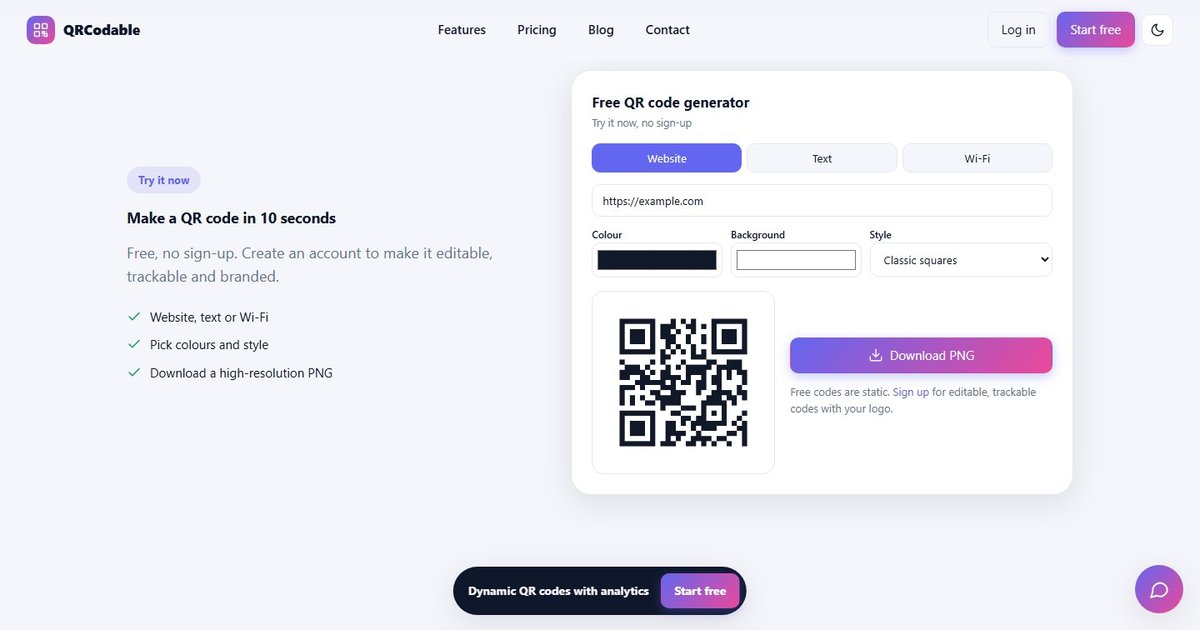
If you only need a one-off code that never changes and you don't need scan counts, the free QR code generator makes static codes with no sign-up.
Common QR tracking mistakes
- Putting a long, tagged URL into a static code. More characters make a denser pattern that's harder to scan at small sizes, and you can never change it.
- One code for every placement. If every flyer, poster and table uses the same code, you can't tell which one worked.
- Inconsistent UTM values. "Print", "print" and "offline" become three separate channels in GA4.
- Tagging internal links with UTMs. Only tag the URL behind the QR code, never links between your own pages. Tagging internal links replaces the original traffic source, so the QR code loses the credit.
- Not testing in GA4 Realtime before printing. Typos in a printed URL can't be fixed later, which is another reason to use a dynamic code.
- Judging success on scans alone. Track a key event (booking, sign-up, purchase) so you know whether the scans turned into results.
Frequently asked questions
Can Google Analytics track QR code scans?
Not by itself. GA4 records visits to pages that run its tag. Add UTM parameters to the QR code's destination URL so those visits show up under your campaign in Traffic acquisition. To count every scan, including scans that land on a PDF or another site, use a dynamic QR code or send scans to GA4 as events.
How do I see QR code traffic in GA4?
Go to Reports > Acquisition > Traffic acquisition and set the primary dimension to Session campaign or Session source / medium. Then filter for the utm_medium you used for QR codes, such as "qr". Use the Realtime report to check a test scan before you print.
Can you track a static QR code?
Only indirectly. A static code has no redirect server, so there is no scan count. If its URL includes UTM tags and points to a site running GA4, you will see the visits that loaded fully. You can't change or fix the URL after printing.
Does QR code tracking identify the person who scanned?
No. Scan analytics record anonymous details such as time, device, operating system and approximate country and city. To get a name or email, ask for it with consent through a form on the landing page.
Why does GA4 show fewer visits than my QR code scans?
The two tools count different things. Scans are counted at the redirect. GA4 counts sessions only when its tag loads and consent allows it. Declined cookie banners, ad blockers, slow connections and destinations without GA4 all lower the GA4 number.
Related guides
- Best dynamic QR code generator: an honest comparison
- Do QR codes expire? What happens when a subscription ends
- UTM QR code generator: build a GA4-ready campaign link and download the code
- Static vs dynamic QR codes: the differences explained
- QR code campaigns: how to plan and measure them
- QR codes on flyers: size, placement and tracking
- All QR code use cases, including flyers and posters, events and product packaging, plus the feature list
Ready to measure your printed marketing? Start free with 5 dynamic QR codes, or make a quick static code with the free QR code generator.
Sources and notes
- Google Analytics Help, "URL builders: Collect campaign data with custom URLs" (support.google.com/analytics/answer/10917952) - UTM parameter list, required parameters, case sensitivity, "(not set)" behaviour, Traffic acquisition dimensions. Checked 13 Nov 2026.
- Google Analytics Help, "[GA4] About custom dimensions and metrics" (support.google.com/analytics/answer/14240153) - event parameters need custom dimensions to be reported.
- Google for Developers, "Measurement Protocol" (developers.google.com/analytics/devguides/collection/protocol/ga4).
- Google Campaign URL Builder: ga-dev-tools.google/ga4/campaign-url-builder.
- QRCodable feature details are taken from the product itself. What each plan includes is listed on the pricing page.