QR Codes for Events: Posters, Schedules and Tracking
2026-11-01
Short answer: Use QR codes at an event to send people from print to a phone page: tickets or sign-up before, the schedule and map during, and a feedback form after. A dynamic QR code lets you fix the link after printing and count scans per poster, banner or table.
Last updated: 13 November 2026
Event material is printed early and changes late. Speakers swap, rooms move and the sponsor list grows the night before. QR codes give print a way to stay current and to be measured. This guide covers where to use them, how to set them up, and how to avoid the mistakes that cost scans on the day.
Where do QR codes help at an event?
Think in three phases and give each code one job.
| Phase | Code placement | Destination |
|---|---|---|
| Before | Posters, flyers, save-the-date cards, social images | Event page, registration or ticket page |
| During | Entrance signs, badges, table cards, session screens | Schedule, venue map, speaker bios, Wi-Fi, polls |
| After | Exit signs, thank-you emails, slides | Feedback form, recordings, next-event sign-up |
A single code can serve more than one phase because a dynamic code can change destination. Point it to registration before the event, to the live schedule on the day, and to the feedback form afterwards. That keeps old print useful and avoids a pile of expired codes.
How do you set up QR codes for an event?
- List the questions attendees will have. Where is it, when does it start, what is on, how do I sign up, where is the Wi-Fi? Each answer is a potential page.
- Build the destination first. Use your event site, or a QRCodable landing page for the schedule and a lead form for registration or interest.
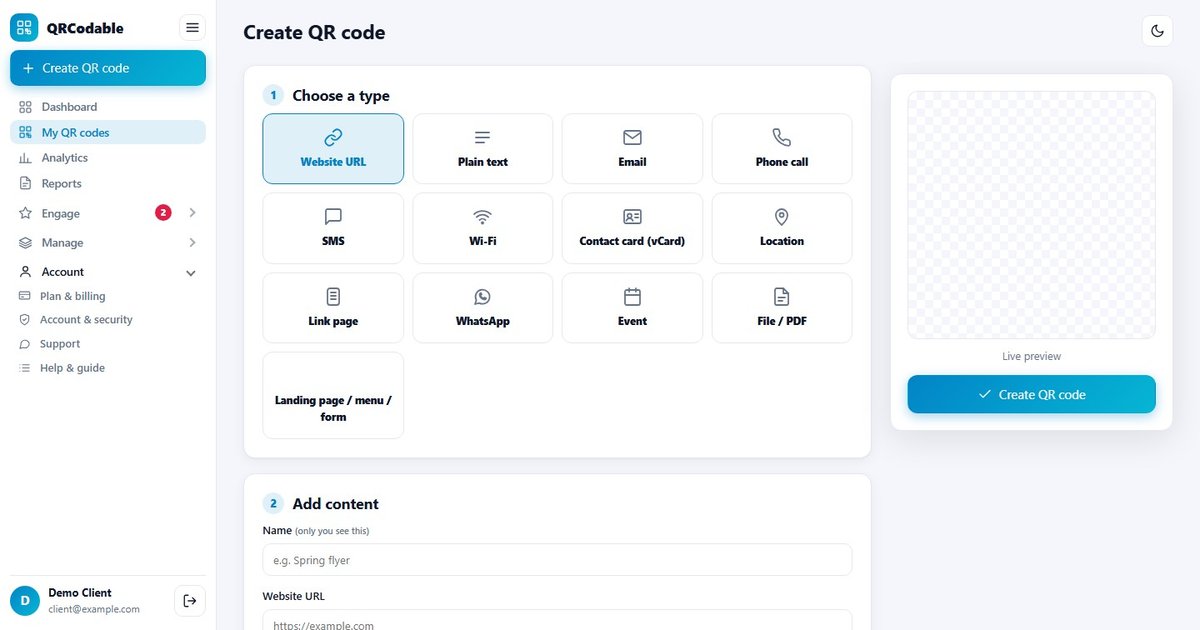
- Create a dynamic QR code for each destination. Give each code a clear name such as "Entrance sign" or "Poster - station".
- Add UTM tags to the destination links, for example utm_source=poster, utm_medium=qr, utm_campaign=autumn_conference. This lets Google Analytics 4 show what each scan led to. Our tracking guide explains the steps.
- Download as SVG or PDF for print.
- Print proofs and test with an iPhone and an Android phone.
- Check the scan dashboard the day after you launch, to confirm scans are arriving.
QRCodable's QR codes for events page shows the typical flow.
Which QR code types suit events?
QRCodable offers 13 QR types. These are the ones events use most:
- URL / landing page: the event page, registration or sponsor page. Dynamic, so you can edit it.
- Lead form: collect name and email from interested visitors without a separate tool.
- Calendar event: a code that holds the event title, start, end and location in the standard calendar format. The ZXing project's Barcode Contents wiki documents the VEVENT format. Whether a phone offers to add it to the calendar depends on the scanning app, so test it.
- Wi-Fi: lets attendees join the event network. See our Wi-Fi QR code guide.
- vCard: a speaker or exhibitor contact. See the vCard guide.
- Menus or links page: food vendors and a "links hub" for sponsors and resources.
A calendar code stores the details inside the pattern, so it cannot be changed after printing and it does not count scans. If the date might move, link to a page instead.
How do you handle tickets and check-in?
Be clear about the limits. QRCodable creates codes that open pages, collect leads and measure scans. It is not a ticketing or door-scanning system. If you need unique tickets validated at the door, use a ticketing platform for that and use QRCodable for the surrounding promotion, information and feedback.
A practical split:
- Ticketing platform: issues personal tickets and checks people in.
- QRCodable: promotes the event, shows the schedule, collects interest, runs the feedback form and tracks which print works.
Do not reuse a ticket code on public signs. Ticket codes should stay private to the ticket holder.
How do you track which promotion works?
Print is hard to measure unless each placement has its own code. With dynamic codes you can:
- Make one code per channel (poster, flyer, partner newsletter, banner), or one code with a different utm_content value per placement.
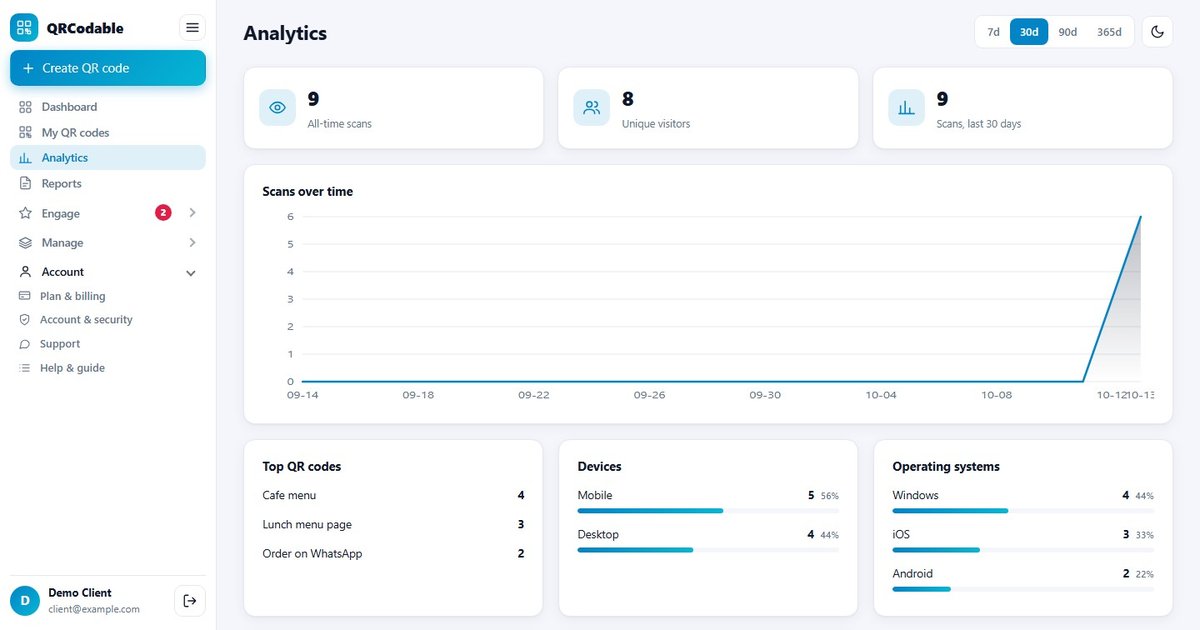
- Compare scans by time, device, country and city. A spike on the day a poster went up, or a city that generates more interest than expected, helps you decide where to promote next.
- Create codes in bulk. If you have forty partner venues, generate the set from a spreadsheet using bulk generation.
- Send events to your tools. QRCodable can pass scan and lead events to GA4, Zapier, webhooks and the API, so a registration can trigger a follow-up in your CRM.
- Compare scans with sign-ups. A poster with many scans and few registrations has a landing-page problem, not a reach problem.
What size and placement works for event signage?
Size depends on how far away the viewer is.
| Item | Typical scan distance | Minimum code size |
|---|---|---|
| Badge or ticket | ~20 cm | 2 cm |
| Table card | ~30-40 cm | 3 cm |
| A3 poster | ~1 m | 10 cm |
| Entrance banner | ~2-3 m | 20-30 cm |
These follow the rule of thumb that the code should be about one tenth of the scanning distance. Keep a clear margin of four modules on every side, as DENSO WAVE specifies. See our QR code size guide for the full table.
Placement tips:
- Put codes at eye level and where people pause, such as queues, registration desks and tables.
- Avoid screens with a glare, or projector slides where the code is on screen for only a few seconds.
- Keep the call to action specific: "Scan for today's schedule", not just "Scan me".
- Add a short URL beneath the code as a fallback.
- Do not place a code on a curtain, flag or any surface that moves.
What should the event landing page include?
Most scans happen on a phone, in a crowd, often with poor reception. Keep the page light and focused.
- The event name, date, time and venue in the first screen.
- One main button: register, view schedule or get directions.
- A short form if you collect leads: name and email is often enough.
- A link to the full schedule, with sessions listed in order.
- Practical information: Wi-Fi, accessibility, contact number.
- A cached or lightweight version if the venue has weak mobile reception.
You can build this as a QRCodable landing page, with team roles that let colleagues edit the schedule without access to billing.
How do you run feedback after the event?
- Create a feedback form with a handful of questions. Short forms get more answers.
- Make a dynamic QR code for it and print it on exit signs and the final slide.
- Use a separate code or UTM value for the feedback so you can compare it with other scans.
- Send the same link in your thank-you email.
- Switch the same codes to the next event once feedback closes.
Common event QR code mistakes
- One code on every item, so you cannot tell what worked.
- A static code for a schedule that will change.
- Codes too small for the distance.
- Slides that show the code for a few seconds.
- A desktop-style page that needs pinching and zooming.
- Using a public sign to share a ticket code.
- Not testing on the venue's real network and lighting.
Frequently asked questions
How do I use a QR code at an event?
Place codes on posters, signs, badges and table cards that open a phone page for registration, the schedule, the map or a feedback form. Use a dynamic QR code so you can update the destination if plans change, and give each placement its own code or tag to track results.
What should an event QR code link to?
Link to the single most useful page for the moment: registration before the event, the schedule and map during it, and the feedback form afterwards. Keep each page fast on mobile with one clear button. A dynamic code lets you change the destination between phases.
Can QR codes be used for event tickets and check-in?
QRCodable is not a ticketing or door-scanning system. Use a ticketing platform to issue and validate personal tickets. Use QRCodable codes for promotion, schedule pages, lead forms, feedback and for measuring which print materials bring people in.
How do I track how many people scan my event posters?
Use a dynamic QR code for each poster or location. The dashboard shows scan counts with time, device, country and city. Adding UTM tags to the destination lets Google Analytics 4 show what visitors did next, such as registering.
Can I change the QR code after the event materials are printed?
Yes, if it is a dynamic QR code. Edit the destination in your dashboard and every printed copy opens the new page. A static code, such as a calendar event code or a Wi-Fi code, holds its data inside the pattern and cannot be changed after printing.
Related guides
- QR codes for events: use-case page
- QR code tracking and analytics: the GA4 guide
- QR code campaigns: plan and measure
- QR codes on flyers
Planning an event? Create a free account for 5 trackable dynamic codes, or start with the free QR code generator. Pro is $9/month for 100 codes and Business is $19/month.
Sources and notes
- ZXing project wiki, "Barcode Contents", Calendar Events section (github.com/zxing/zxing/wiki/Barcode-Contents), accessed 13 November 2026. The VEVENT calendar format.
- DENSO WAVE, "Point for determining the code area" (qrcode.com/en/howto/code.html), accessed 13 November 2026. Four-module quiet zone.
- Apple Support, "Scan a QR code with your iPhone or iPad" (support.apple.com/en-us/102680), dated 14 September 2026.
- Size figures use the one-tenth distance rule of thumb, which is not part of the QR Code standard. Sizes are recommendations to test.
- How phones handle calendar codes varies by device and app. We have not tested every combination.