QR Code Business Card: vCard Setup and Size Guide
2026-10-31
Short answer: Put a QR code on a business card that either saves your contact details (a vCard code) or opens your profile page (a dynamic code). Make it at least 2 cm wide with a clear four-module margin, dark on light, and test the printed card with an iPhone and an Android phone.
Last updated: 13 November 2026
A business card is small and easy to lose. A QR code turns it into a link to something that stays current: your contact details, your portfolio, a booking page. This guide compares the two ways to do it, shows how to set each one up, and covers size and printing.
Should a business card QR code be a vCard or a link?
You have two options, and they behave differently.
| vCard code | Dynamic link code | |
|---|---|---|
| What the code contains | Your contact details as text | A short link to a page |
| Scanning result | Phone offers to save a contact | Phone opens your profile page |
| Editable after printing | No | Yes |
| Scan analytics | No | Yes (time, device, country, city) |
| Pattern density | Higher, needs more space | Lower, scans well at small sizes |
| Works without internet | Yes | No |
A vCard code is quick for the person scanning, who can save you in one tap. A dynamic link code is easier to print small, can show your latest details, and tells you whether the cards are being used. Many people choose the link and put a "Save contact" button on the page.
What is a vCard?
A vCard is a standard file format for contact information. It is defined in RFC 6350 (version 4.0, August 2011) by the IETF. A vCard starts with BEGIN:VCARD and ends with END:VCARD, and each line holds one property such as name, phone or email. RFC 6350 states that a vCard must include the VERSION and FN (formatted name) properties.
A minimal example, using version 3.0 as in the ZXing project's documentation:
`` BEGIN:VCARD VERSION:3.0 N:Owen;Sean;;; FN:Sean Owen TITLE:Software Engineer EMAIL;TYPE=INTERNET;TYPE=WORK;TYPE=PREF:srowen@example.com URL;TYPE=Homepage:https://example.com END:VCARD ``
ZXing's wiki also notes that vCard is fairly verbose for 2D barcodes, whose capacity is limited, and describes a more compact format (MECARD) popularised by NTT DoCoMo. QRCodable's vCard type produces version 3.0 text, with fields for name, organisation, title, phone, email, website and address.
How do you create a vCard QR code?
- Decide the fields. Name, job title, company, one phone number, one email and your website are enough. Every extra field makes the code denser.
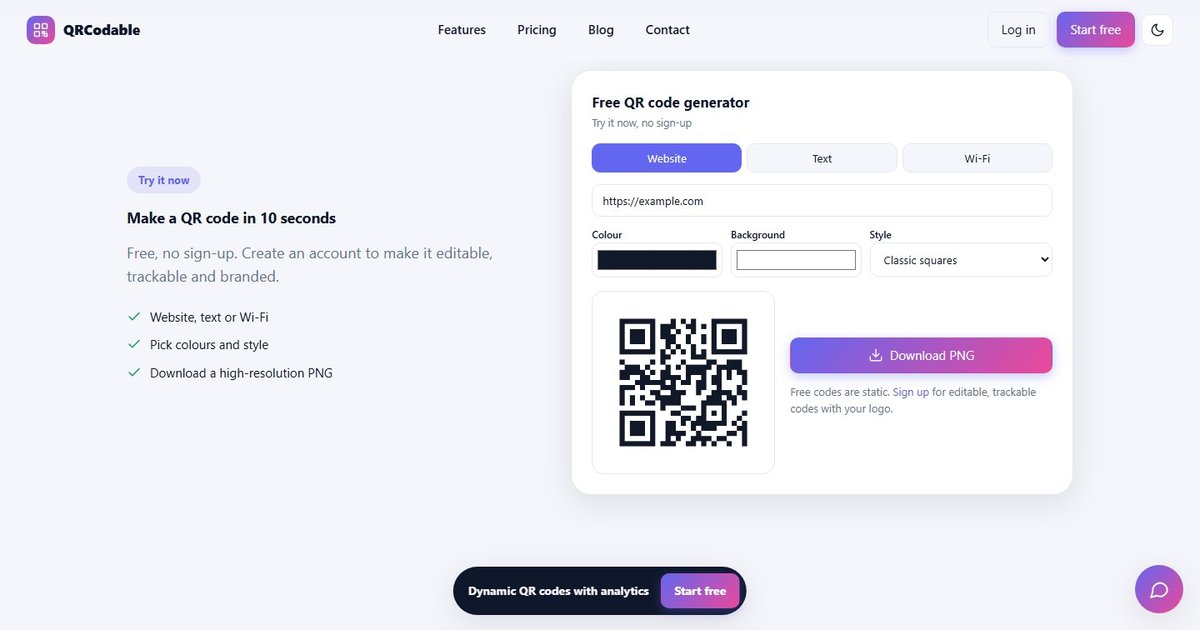
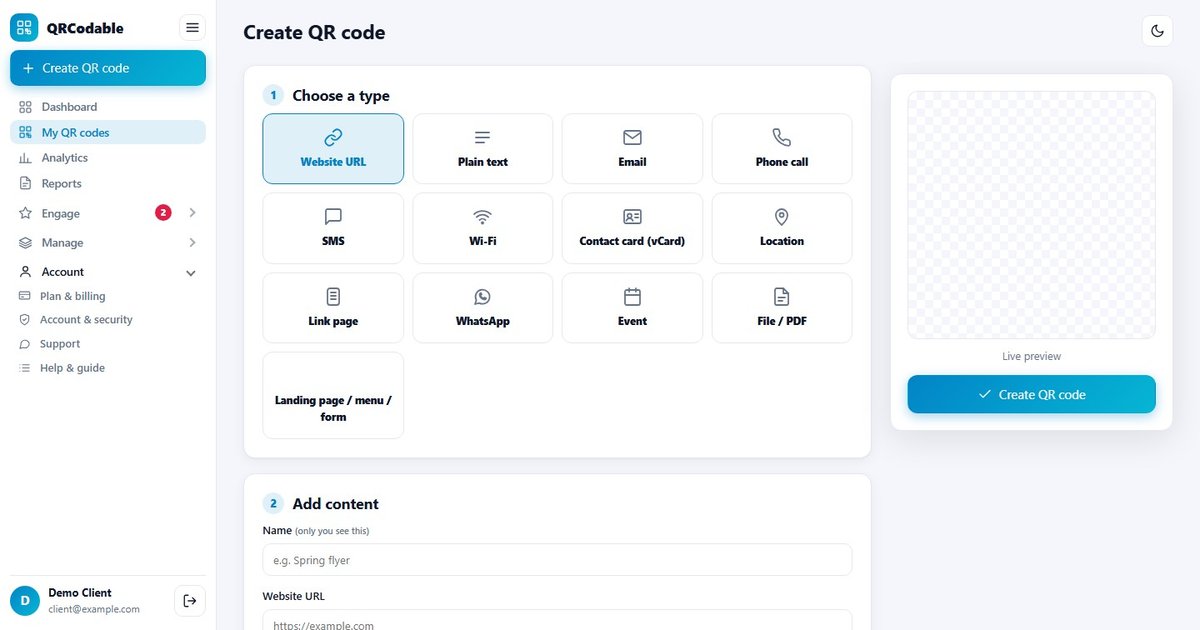
- Open a generator with a vCard type. The free QR code generator has one, and QRCodable has vCard among its 13 QR types.
- Fill in the fields with the details exactly as you want them saved.
- Download as SVG or high-resolution PNG.
- Test the printed card. Scan it with an iPhone and an Android phone and check the contact fields come out correctly.
- Print the card. Remember that a vCard cannot be edited later. Any change in phone or email means a new code.
Read our business card use-case page for design examples.
How do you create a dynamic link QR code for a business card?
- Build the destination. A QRCodable landing page or your own site: your name, role, photo, contact buttons and links.
- Add a "save contact" option so visitors can still store your details.
- Create a dynamic QR code that points to that page.
- Add UTM tags if you use Google Analytics 4, for example utm_source=business_card, utm_medium=qr.
- Download for print as SVG or PDF.
- Order a small test batch of cards and scan one before ordering a full run.
Because the code is dynamic, you can later move the page, change the title or link to a new booking tool without reprinting. If you give out cards at events, use a separate code per event to see which ones bring contacts. See our event QR code guide.
How big should the QR code on a business card be?
A standard business card is around 85 x 55 mm, so space is limited. As a rule:
- 2 cm is a practical minimum, and 2.5 cm is more comfortable.
- Keep a quiet zone of four modules on every side. DENSO WAVE specifies this margin. For a 2.5 cm code with 25 modules across, each module is 1 mm, so the margin is 4 mm.
- Keep the data short. A link code has few modules and scans well at this size. A full vCard with address and notes has many more, which makes the modules tiny.
- Dark on light. Use black or a deep brand colour on white or a light card stock.
- Test the card at the distance people hold it, usually 20-30 cm.
The common rule of thumb is that the code should be about one tenth of the scanning distance, which supports 2-3 cm for cards. It is not a standard, so test. See our full QR code size guide.
Where should the QR code go on the card?
- On the back of a single-sided design, with a short instruction such as "Scan to save my contact".
- Bottom right on the front if the front is simple.
- Away from edges and folds. Trimming varies, so keep the code inside the printer's safe area.
- On a matte area. Spot gloss or foil over the code can reflect light and block scanning.
- Not behind a logo or texture.
What can go wrong with print?
- Soft-touch or glossy laminate may reflect light. Test the real stock.
- Embossing or letterpress can deform the modules. Keep the code flat.
- Colour: pale or low-contrast colours reduce scan reliability.
- Small code, long data: shorten the data or enlarge the code.
- Cropping: a slight shift can cut into the margin.
How do you track business card scans?
Only a dynamic QR code can tell you. Each scan is recorded with its time, device type, country and city, so you can see which batch of cards gets scanned and when. Combine that with UTM tags and GA4 to see whether visitors went on to book or message you. For teams, QRCodable supports team roles, and bulk generation can create a code per employee from a spreadsheet.
A vCard code cannot be tracked, because there is no redirect to count.
Common business card QR code mistakes
- Putting the whole résumé into a vCard so the code becomes unreadable at card size.
- Printing a static link to a page that later changes.
- Using a code under 2 cm.
- Leaving no quiet zone.
- Not testing on both iPhone and Android.
- Linking to a page that needs desktop zooming.
- Giving the same code to everyone, so you cannot see which events work.
Frequently asked questions
How do I put a QR code on a business card?
Create a QR code that either holds your contact details (a vCard) or links to a profile page, download it as SVG or PNG, and place it on the card at least 2 cm wide with a clear margin. Print a test card and scan it with two phones before ordering.
What is a vCard QR code?
It is a QR code that contains your contact information in the vCard text format. When scanned, the phone offers to save a new contact with your name, phone, email and other fields. The format is defined in RFC 6350. It works offline but cannot be edited after printing.
What size should a business card QR code be?
At least 2 cm wide, ideally 2.5 cm, with a clear margin of four modules on every side. Shorter data makes a simpler pattern that scans better at small sizes. Always scan a printed card from about 20-30 cm before sending the full order.
Can I change my business card QR code after printing?
Only if it is a dynamic code. A dynamic code points to a short link you can edit, so the card keeps working if your page or details change. A vCard code stores your details in the pattern and cannot be changed without reprinting.
Can I see who scans my business card QR code?
With a dynamic code you can see how many scans you get and when, plus device type, country and city. You cannot see the identity of an individual scanner. A vCard code gives no scan data. Add UTM tags to see what visitors did next in Google Analytics 4.
Related guides
- QR codes for business cards: use-case page
- QR code size and print quality
- Static vs dynamic QR codes
- QR code tracking and analytics
Ready for your cards? Use the free QR code generator for a vCard, or create a free account for 5 trackable dynamic codes. Pro is $9/month for 100 codes and Business is $19/month.
Sources and notes
- IETF, RFC 6350, "vCard Format Specification", August 2011 (rfc-editor.org/rfc/rfc6350), accessed 13 November 2026. BEGIN/END structure; VERSION and FN required. The RFC has since been updated by RFC 6868, RFC 9554 and RFC 9555.
- ZXing project wiki, "Barcode Contents", Contact information and vCard sections (github.com/zxing/zxing/wiki/Barcode-Contents), accessed 13 November 2026. Example vCard 3.0 and the note on verbosity and MECARD.
- DENSO WAVE, "Point for determining the code area" (qrcode.com/en/howto/code.html), accessed 13 November 2026. Four-module quiet zone.
- The one-tenth distance ratio is a rule of thumb, not part of the QR Code standard. Sizes are recommendations to test.
- How phones map vCard fields to contacts varies by device. We have not tested every device.